AntiLogin · Profiles and workflows
Connect Playwright to an Existing AntiLogin Browser Profile
Connect Playwright to a running AntiLogin profile with CDP. Reuse its browser context, get the automation port and follow a practical setup guide.
Free Friends availability is determined in the app. MCP/CDP are available on paid plans.
Prepare a Profile and Check CDP Availability
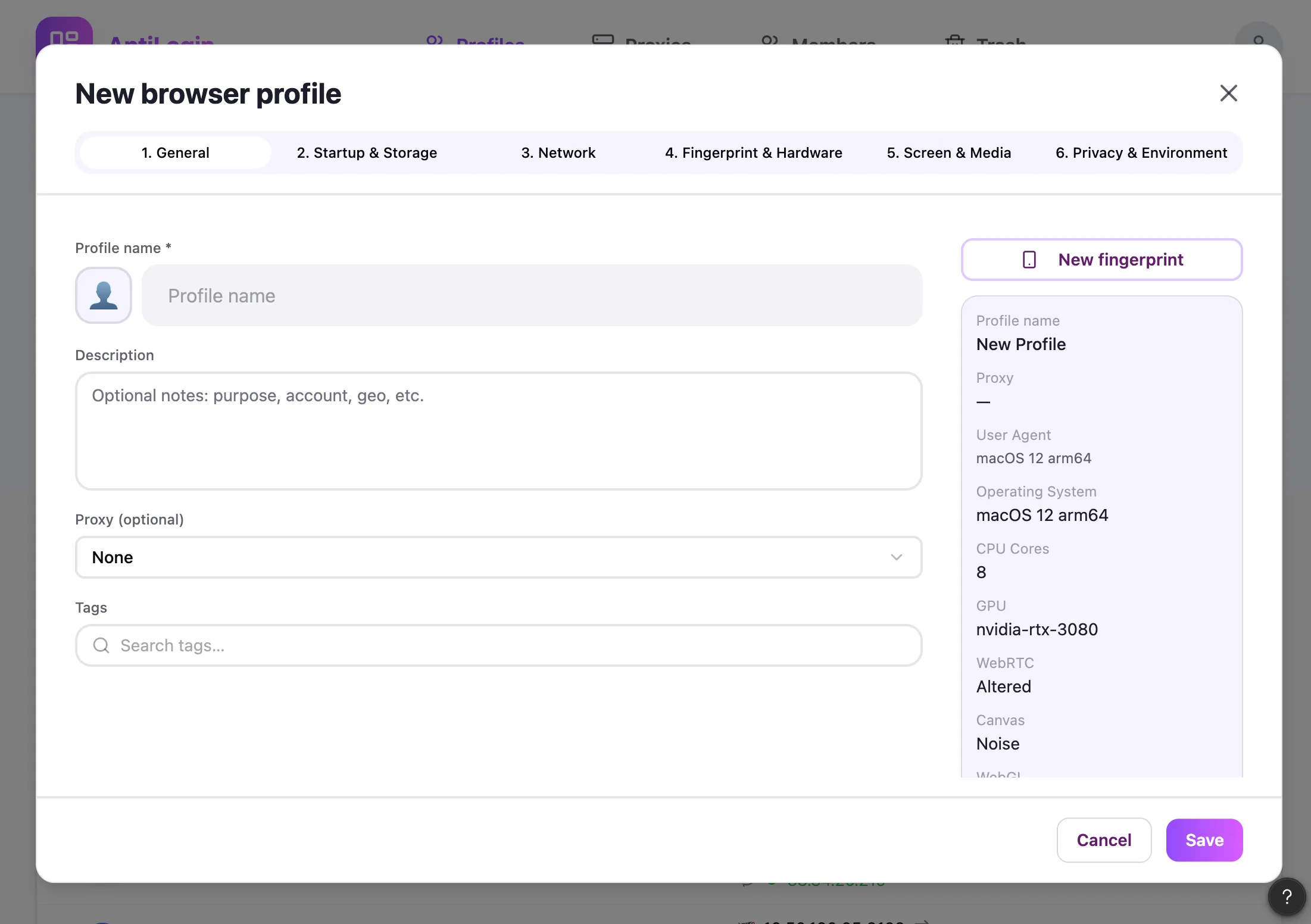
Prepare a profile you are authorized to automate and check that its workspace includes CDP access. A running AntiLogin profile is the browser environment you connect to; launching an unrelated browser through Playwright would create a different session.
Start the Profile and Get Its Automation Port
Start the profile, then obtain its current automation port from the documented session controls or management MCP. Use the actual returned endpoint. Do not assume that a fixed example port belongs to the intended profile.
Connect with Playwright connect_over_cdp
Playwright’s Python Chromium connection method is connect_over_cdp. The minimal connection sketch below shows the boundary between an already running profile and your script; it is an integration sketch, not a claim of a completed end-to-end product test.
Use the Existing Browser Context and Session
Inspect the existing browser contexts and pages before continuing. Opening an existing page preserves its browser context; it does not guarantee the website remains signed in. Check the visible account and handle a fresh login when required.
Keep Profiles and Automation Tasks Separate
Keep one clear mapping between a job and its profile. Avoid running overlapping jobs against the same session. When processing several clients, verify the profile and page at every handoff rather than relying on tab order.
Handle Connection Errors and End the Session Correctly
For connection failures, check the profile is running, the returned port is current, the endpoint is reachable locally and feature access is enabled. Review compatible versions in the linked documentation. Stop your script cleanly and close the AntiLogin session through its session controls.
Python Playwright connection sketch
Set ANTILOGIN_CDP_ENDPOINT to the actual endpoint returned by your running session. This example only reads the open page URLs.
import os
from playwright.sync_api import sync_playwright

with sync_playwright() as p:
    browser = p.chromium.connect_over_cdp(
        os.environ["ANTILOGIN_CDP_ENDPOINT"]
    )
    for context in browser.contexts:
        for page in context.pages:
            print(page.url)
Questions and answers
Do I need to launch a new browser through Playwright?
Connect to the running profile through connect_over_cdp rather than launching a separate blank browser.
Where do I get the connection port?
Read the current session’s automation port from the documented profile/session controls or management MCP.
Will Playwright use a session that is already logged in?
Inspect the existing context and page. The website can still expire its session or request another login.
What should I do if the CDP connection fails?
Check the running profile, current endpoint, local reachability, feature access and compatible versions. Keep the endpoint private.