Invite a User to the Team
An invitation adds a user to the selected workspace and lets you preconfigure their access to profiles, proxies, tags, logs, and team settings.
Before you start
- You are in the workspace where you want to add the user.
- Your role has permission to manage the team.
- You have the user's AntiLogin email.
- If profile access should be limited, the required tags are already created and assigned.
Send an invitation
- In the left menu, open
Team.
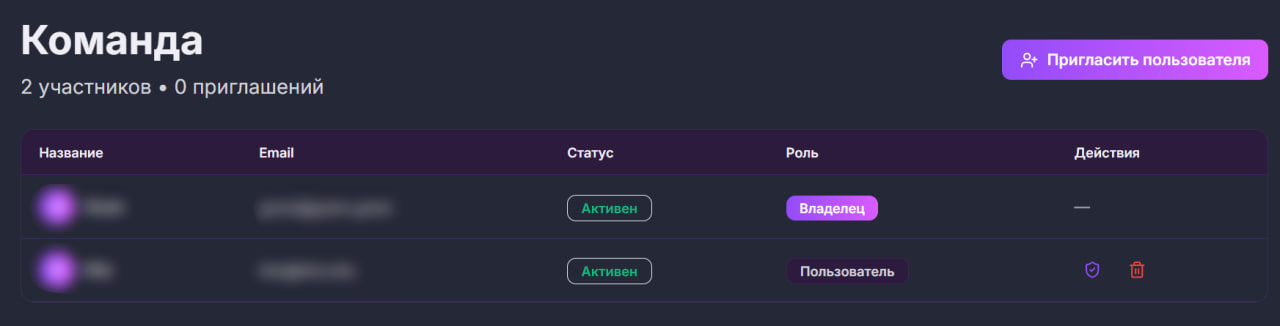
- Click
Invite User. - Enter the user's email.
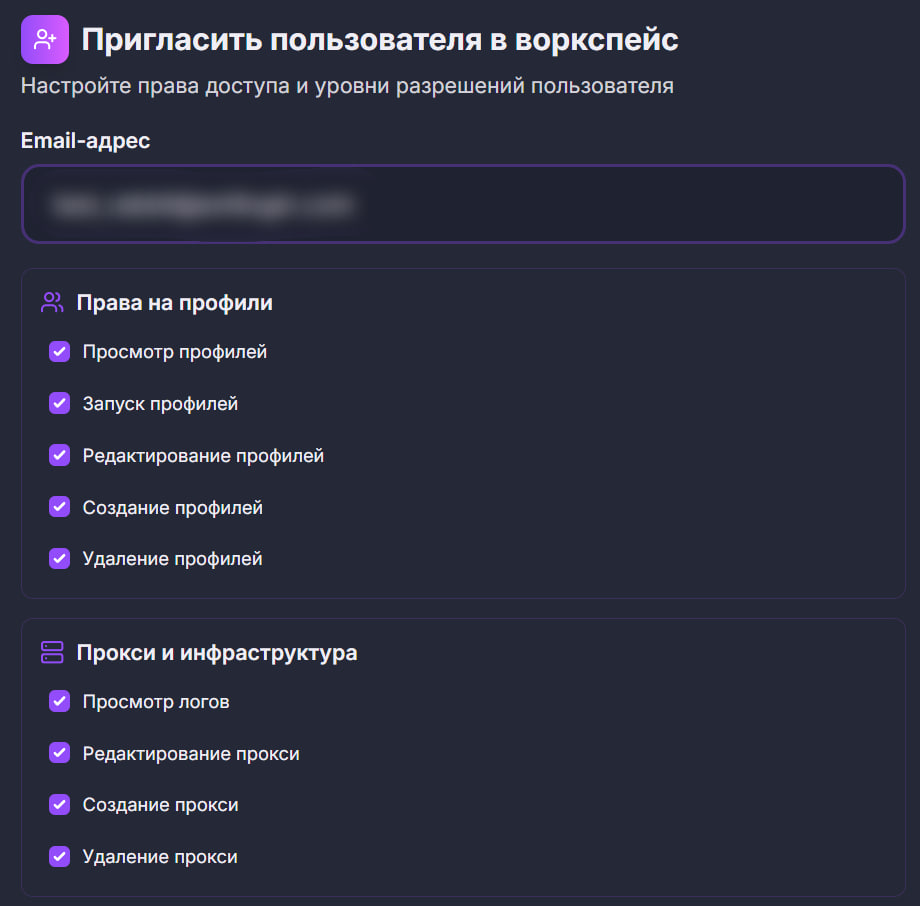
- Select only the actions the user needs: work with profiles, proxies, logs, tags, or the team.

- If the user should see only some profiles, disable
Access All Profilesand select allowed tags. You can separately allow access to profiles without tags.

- Click
Send Invitation. - Check that the invitation appears in the
Invitationssection with thePendingstatus.

The invitation is also sent to the user's email. If they are already signed in to the desktop application, they will also see a notification with Accept and Decline buttons. The next steps are described in Accept a Team Invitation.
Change permissions
- In
Team, open the row for the user or pending invitation. - Click
Permissions. - Change permissions and profile access by tags.
- Save the changes.


Cancel an invitation or revoke access
- For a pending invitation, cancel the invitation.
- For an accepted invitation, revoke access or remove the user from the workspace.
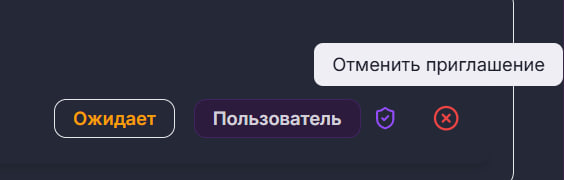

After access is revoked, the user no longer sees profiles and proxies from this workspace.
How to choose permissions
- Grant the user only the actions needed for their tasks.
- Use tag-based access for assistants and contractors.
- Do not grant team management to users who should not change other users' permissions.
- Grant log access only to users who need to oversee profile work.
If the user cannot see profiles
- Check that the user accepted the invitation and appears in the members list.
- Make sure they switched to the required workspace.
- Check profile permissions and tag restrictions.
- If access exists but an action is unavailable, check the user's role and selected workspace plan.